Deleting a company
Deleting a company removes it for everyone: the company page and its team roster go away, and nobody can undo it from RU4M. It does not reach back into events that used it — those keep the organizer name and logo they were saved with. Use it when a company was created by mistake or is no longer needed at all — not when you only want to change its name or stop using it. Editing the details is a separate task: Editing company details, logo and contact information.
Who can delete a company
Only an Admin sees the Delete company card
You need the Admin role in that company. For a Moderator or a plain Member the whole card is not rendered — not greyed out, absent — so the action cannot be started at all from their screen. Nothing about this depends on a paid package or on any event state.
The full role matrix, including what each role may do instead, is on Company member roles and permissions.
Where the Delete company card is
Open the company's own page — from Your companies and company access, click the company — and scroll to the bottom. The Delete company card is the last thing on the page, below the Team members card, outlined in red. Its address is /en/dashboard/companies/{id}.
The card carries one line of explanation, Delete this company if you no longer need it. This action cannot be undone., and one red Delete company button. Pressing the button opens the confirmation dialog; it deletes nothing by itself.
Deleting the company
- Press Delete company on the red card at the bottom of the company page.
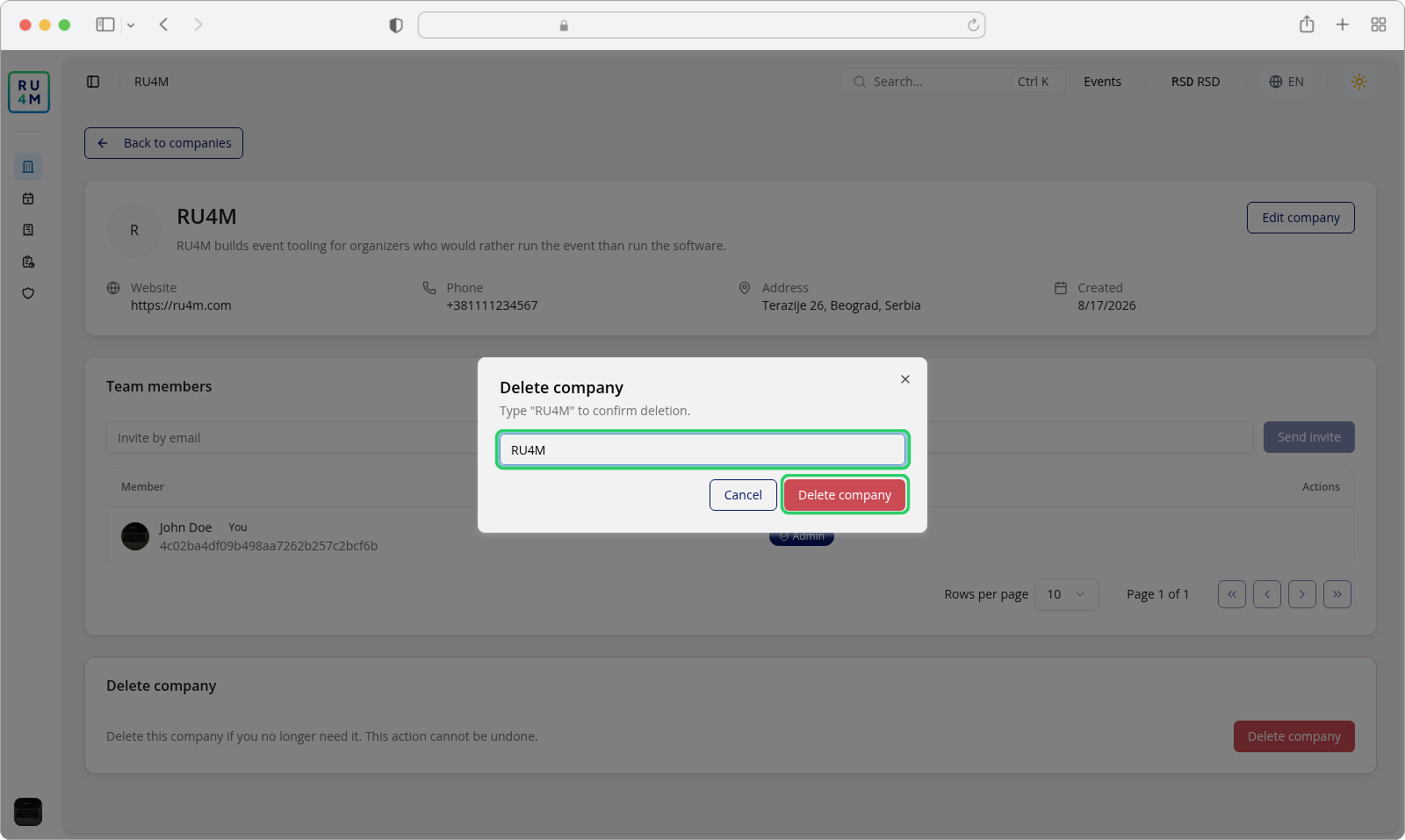
- The Delete company dialog opens. It asks you to type the company's name to confirm deletion — the same line in the dialog always names the company it would delete, so you can check the two against each other before you type anything.
- Type the company's name exactly as it appears in the heading, including capital letters and spaces. Delete company in the dialog stays greyed out until what you typed matches the name exactly: a different case, a missing character or a trailing space does not count.
- Press Delete company in the dialog. You can also press Cancel, or close the dialog, at any point before that — nothing has been deleted yet, and Cancel returns you to the company page with everything intact.
- The confirmation Company deleted successfully. appears and RU4M takes you back to your list of companies, where the company is no longer listed.
What deleting does to the rest of RU4M
The company stops appearing in Your companies and company access, and its page at /en/dashboard/companies/{id} no longer opens — you land on the Company not found screen instead. Everybody who was on its team loses their role in it at the same moment.
Two things happen to work that was already attached to the company:
- Pending invitations and join requests are cancelled. Every invitation that had been sent but not yet accepted stops being valid, and every pending request to join is closed. People who never accepted are not added to anything; the people who had already joined simply lose their membership.
- Connected communities are detached, not deleted. If the company was attached to any community, the link to the company is removed and those communities keep existing without it.
The company's events are not deleted, and they are not rewritten either. An event that listed this company as its organizer keeps its own page, its registration and the organizer name, description and image it was saved with — so that company's name and logo can go on showing on the event after the company itself is gone. If that is not what you want, change the event's Organizer fields before you delete, or pick a different company: Connecting a company to an event.
A deleted company cannot be restored
Nothing in RU4M brings a company back — there is no Restore, no archive and no recycle bin. If you only want to stop using a company for a while, remove the people from it instead, or connect it to no events and leave it as it is: Inviting and removing members. If you want the same name free again for a new company, the deletion is what releases it.
The one-admin rule
The Delete company button enables as soon as the name matches, even when the deletion will then be refused. If you are the only Admin of that company, RU4M refuses to delete it — a company has to keep at least one Admin — and you get the error Cannot delete as the only admin. Assign another admin first. instead of the success message.
That is a real limit, not a glitch: invite somebody, make them an Admin, and only then delete. See Inviting and removing members for the invitation and Company member roles and permissions for the promotion. Until there is a second Admin, the dialog fills in correctly and the button lights up, and the refusal only appears when you press it.
If something goes wrong
| What you see | What it means | What to do |
|---|---|---|
| There is no Delete company card at the bottom of the page | You are a Moderator or a Member, not an Admin. | Ask an Admin of the company to delete it. |
| Delete company in the dialog stays greyed out | What you typed does not match the company's name exactly. | Clear the field and type the name again, matching capital letters and spaces. |
| Error Cannot delete as the only admin. Assign another admin first. | You are the company's only Admin. | Promote a second Admin, then delete. |
| Error Company not found. | The company was already deleted, or the address in the bar is not a company you manage. | Go back to Your companies and company access. |
| An error toast reading Failed to delete company. | The deletion was refused or did not save. | Try again. If it keeps failing, the company may have been deleted in another session in the meantime. |
| The success message appeared but the company is still in your list | The list you are looking at was open before the deletion. | Reload Your companies and company access; a deleted company is not listed again. |