Your events and events you help manage
All Events is the list of every event you are responsible for. From it you open the one you want to work on, and from each row you reach the actions that belong to that event.
The list is the starting point for everything else in this guide: publishing, editing, invitations, packages and analytics all begin from a row here.
Everyone with an account can open this page.
No role, no paid package and no existing event are required — the list is simply empty until you create one.
Who is in the list
This is the part worth reading twice. The list is not "every event on RU4M" and it is not "every event you created". It is every event you can act on:
- Events you created — an event appears here the moment you finish the first step of the creation wizard, still a draft, before anyone joins its team.
- Events where you are a Moderator on the event team.
- Events organized by a company whose role you hold — as Admin or Moderator.
A company Member sees none of that company's events, and a member of an event team who is neither its creator nor a moderator does not see the event here either. Being able to see an event on this page is not the same as being able to change it — see What the Actions cell tells you below.
Which company role you hold
The company role matrix — who can see what, and who can edit — is documented separately in Company member roles and permissions.
Where it is in the app
The Events entry in the left sidebar leads here. The list is also reachable directly at /en/dashboard/events.
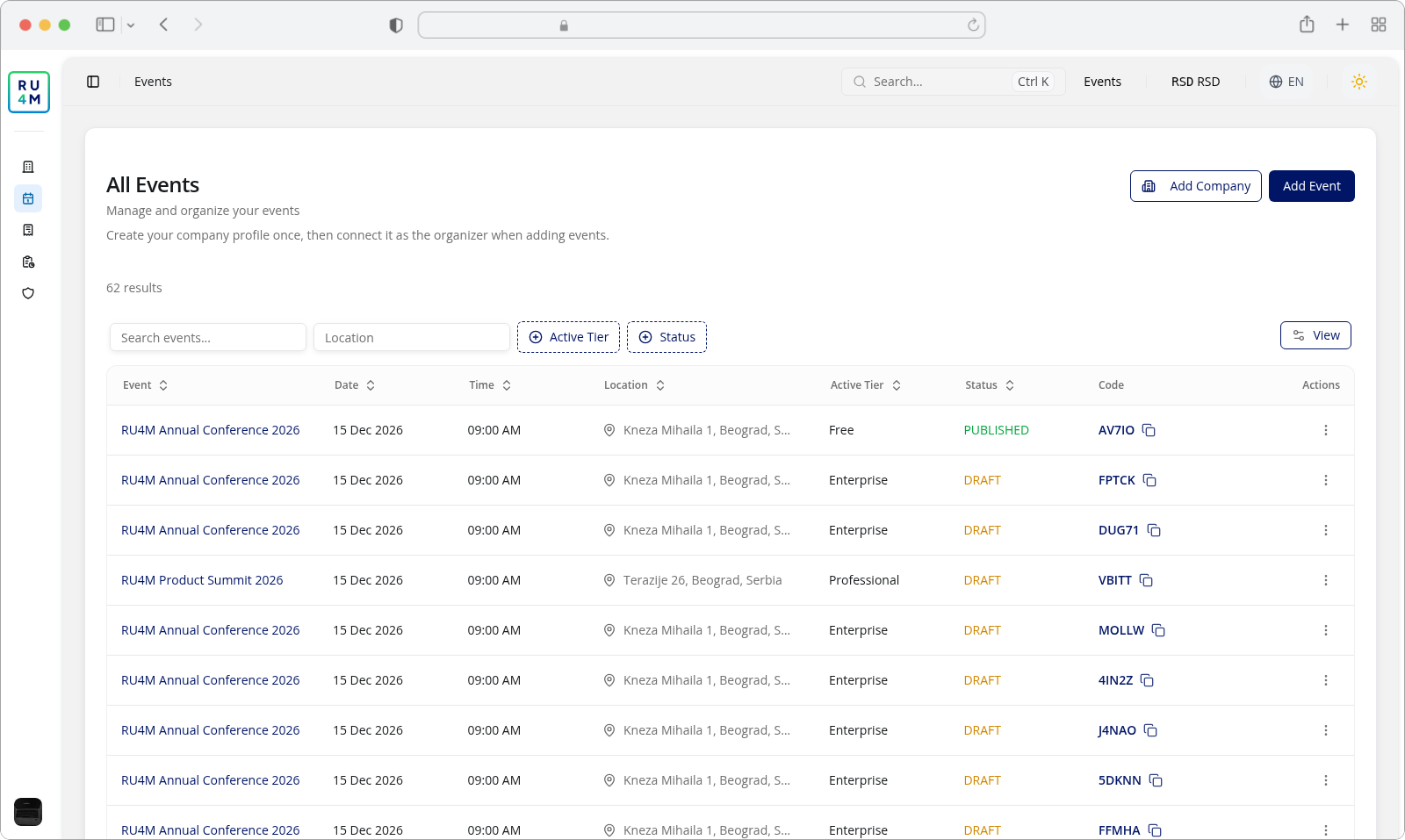
The header carries three things:
| Element | What it is |
|---|---|
| All Events | The page title, with Manage and organize your events under it. |
| Create your company profile once, then connect it as the organizer when adding events. | The second helper line. It points at the Add Company button beside it — the company you connect to an event decides who can edit it later. |
| Add Company / Add Event | Create a company, or start the creation wizard. Add Event goes to /en/events/create. |
Under the header, the line 62 results counts every event the list found, not only the ten on screen. While the list is refetching after a change, updating… appears next to the count.
Below that is the toolbar: Search events…, Location, Active Tier and Status, then Reset, and a View menu that shows and hides columns. What each of them does is covered in Search, filters and list views.
Reading the columns
The table has eight columns. Every one of them sorts, except Code and Actions.
| Column | Serbian header | What the cell holds |
|---|---|---|
| Event | Događaj | The event title, as a button. Clicking it opens that event's page at /dashboard/events/{id}. |
| Date | Datum | The event's start and end dates. TBA when the event has no start date yet. |
| Time | Vrijeme | The start and end time. Empty when the event has none. |
| Location | Lokacija | The venue. TBA when the event has no location. |
| Active Tier | Aktivni paket | The package currently assigned to the event. — when it has none. |
| Status | Status | DRAFT, PENDING, PUBLISHED or PAYMENT COMPLETED. |
| Code | Kod | The event's own code, with a button that copies it to the clipboard. On a row you cannot edit, the cell reads -. |
| Actions | Akcije | The row's ⋮ menu — the same control whatever you can do with the event. |
A dash in the Code column is a permission, not a fault
The event code is only sent to the Backoffice for an event you can edit. On a row you may only view, the cell reads -. If a colleague can see an event code for a shared event and you cannot, that is the difference between editing it and only viewing it.
The default order is start date, newest first. Below the table the footer reads Rows per page — 10 by default, with 20, 30, 40 and 50 available — and Page 1 of 6, with buttons to move through the rest.
What the Actions cell tells you
Every row ends in the same ⋮ menu. What it opens depends on how much you can do with that event:
- A row you can edit opens the full set: View, Edit, Invite, Edit Tier, Upgrade Tier, Manage Tickets, Publish (or Proceed to Payment), Unpublish and Delete. Which of those appear depends on the event's own status and package, so a row may show fewer than all of them.
- A row you can only view opens a much shorter menu — View, plus Upgrade Tier where the event sits on a package you could pay to move up from. Everything that would change the event is gone.
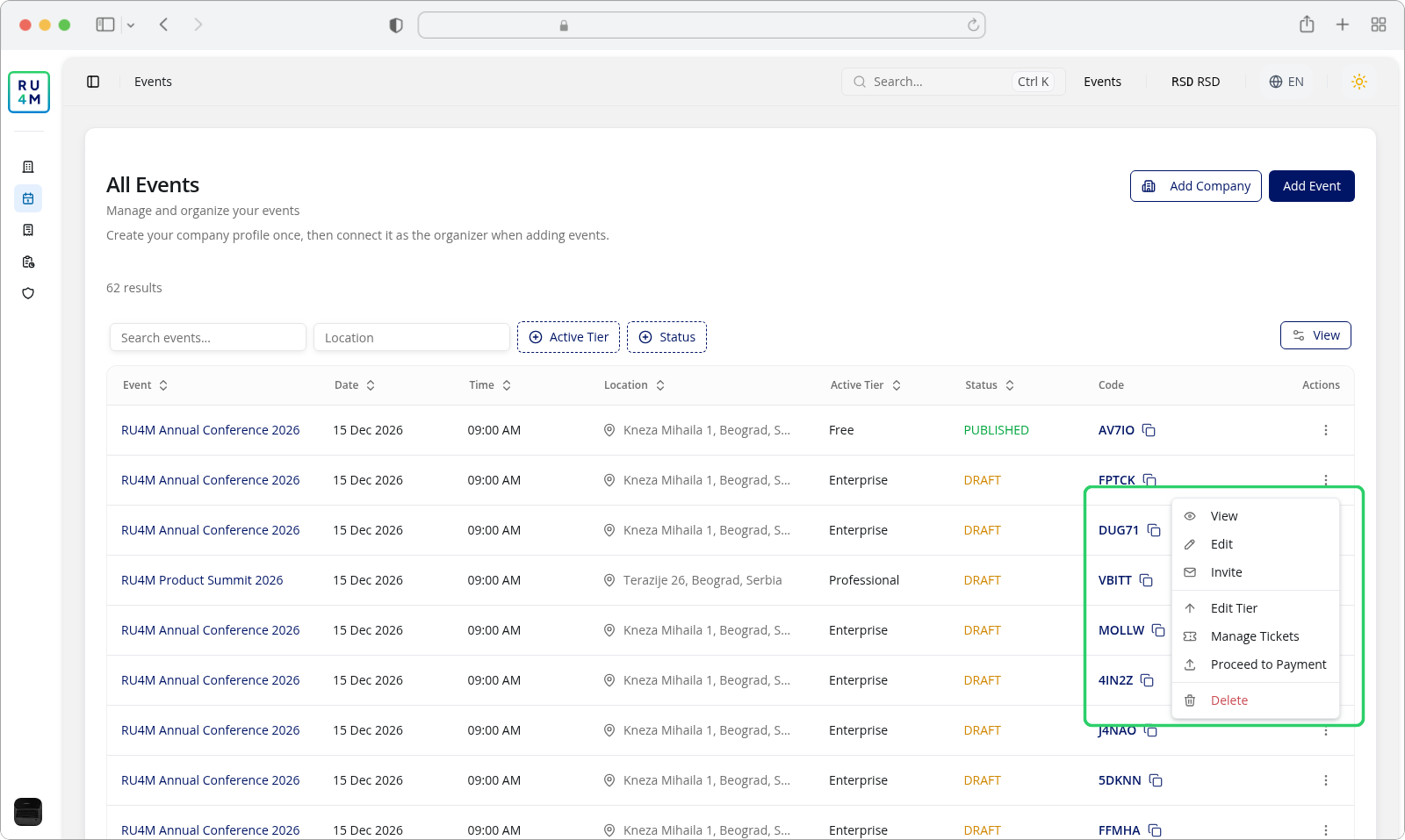
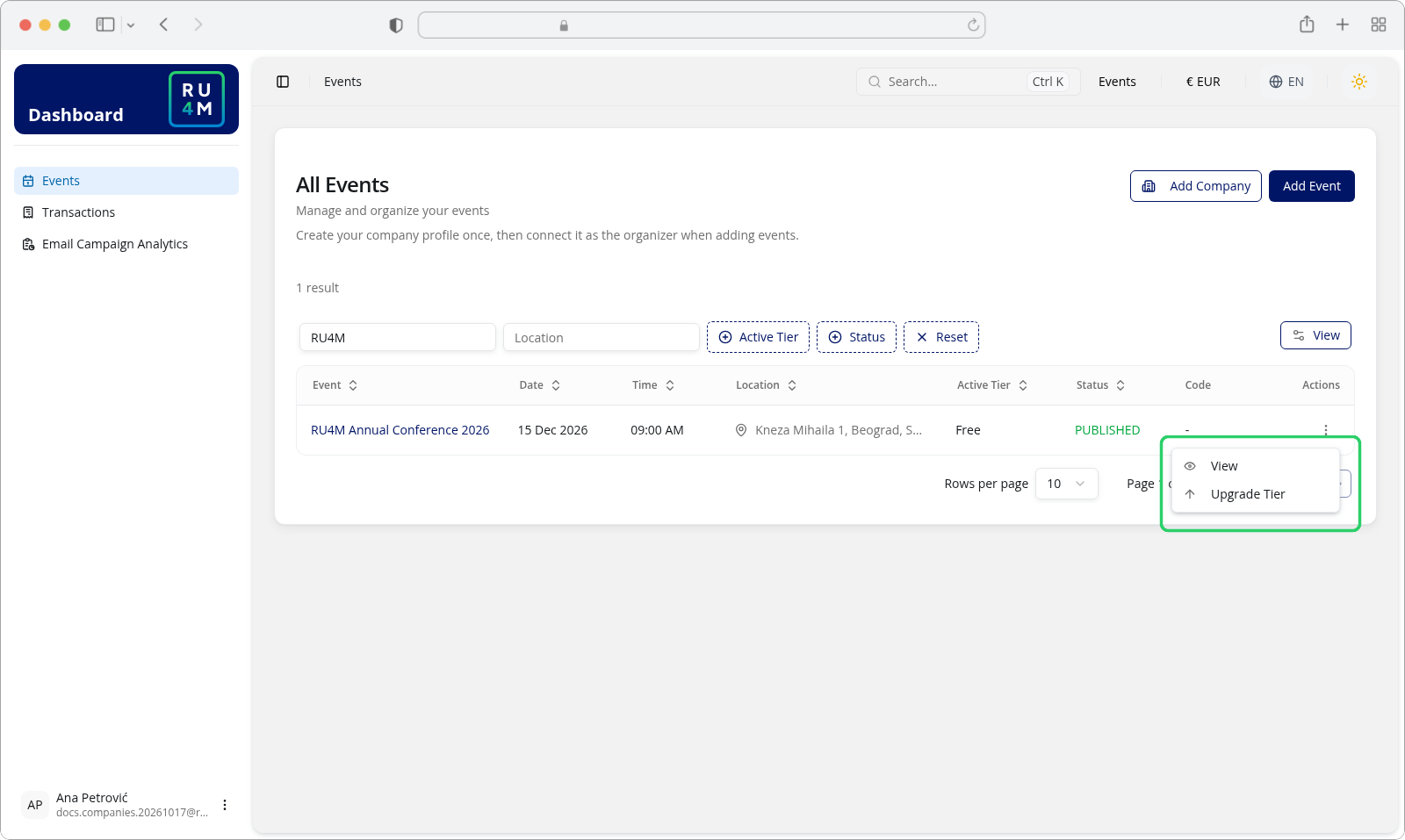
Count the entries, not the control: the menu is the same shape either way, and a short menu is how the list tells you the event is read-only for you.
| Control | Where it goes |
|---|---|
| The event title | /dashboard/events/{id} — the event's own page in the Backoffice |
| View in the row menu | /events/{id} — the event's public page |
What the menu entries lead to
Each entry is a task with its own instructions: Edit in Edit event content, Invite in Invitations and promotion, Edit Tier, Upgrade Tier and Manage Tickets in Packages and tickets, and Publish in Create and publish.
Events running right now
When an event you can act on is running at this moment, a green Live Now banner appears above the toolbar. It holds one card per running event, each with a Live Now badge, the location, the running hours, the sponsor and the number of participants, plus two buttons:
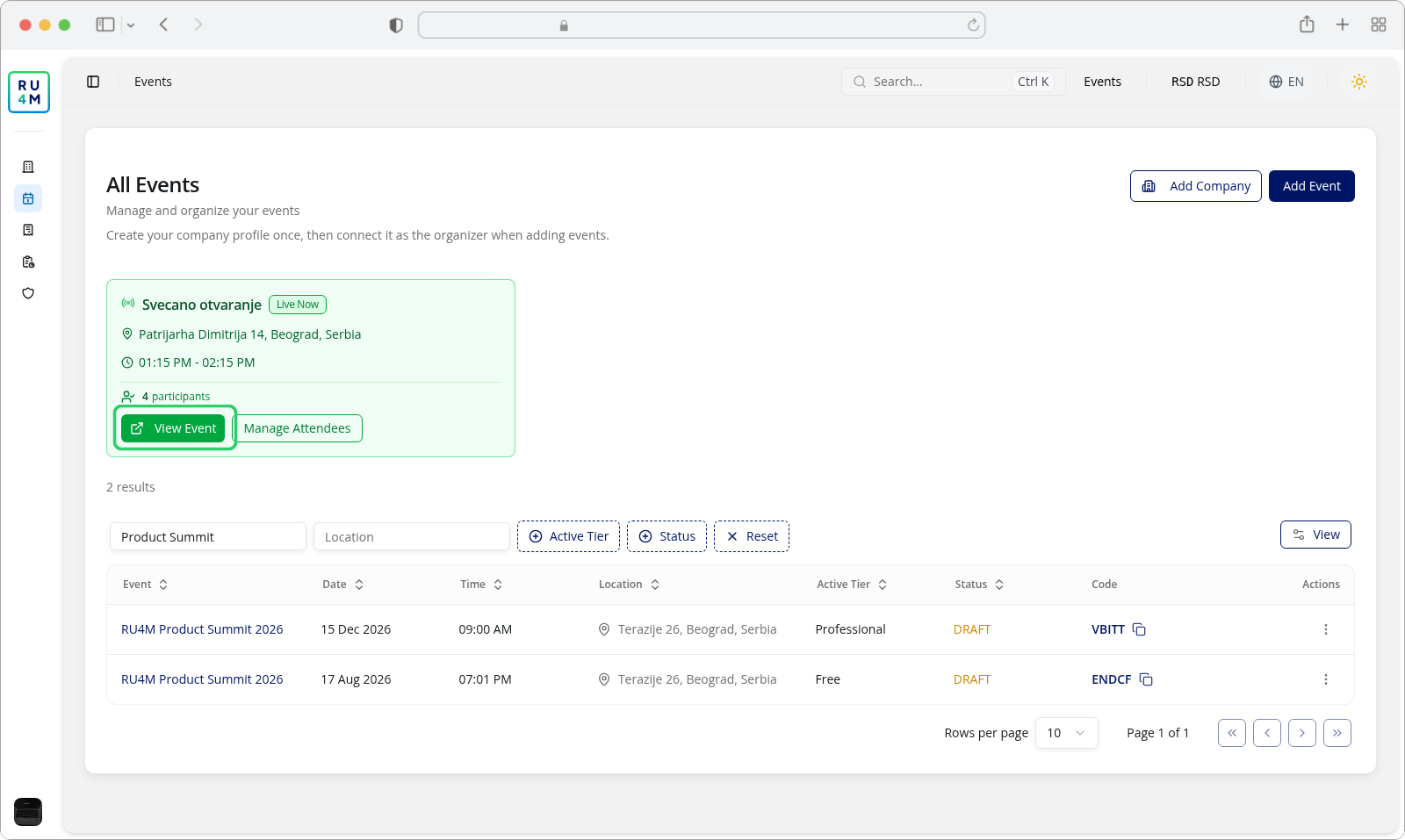
| Button | When it appears |
|---|---|
| View Event | Always — it opens the event regardless of whether you may edit it |
| Manage Attendees | Only on an event you can edit |
The participant count on that card counts confirmed registrations, not sign-ups.
Events that are not running right now are not in the banner — they are rows in the table below, as always.
If something goes wrong
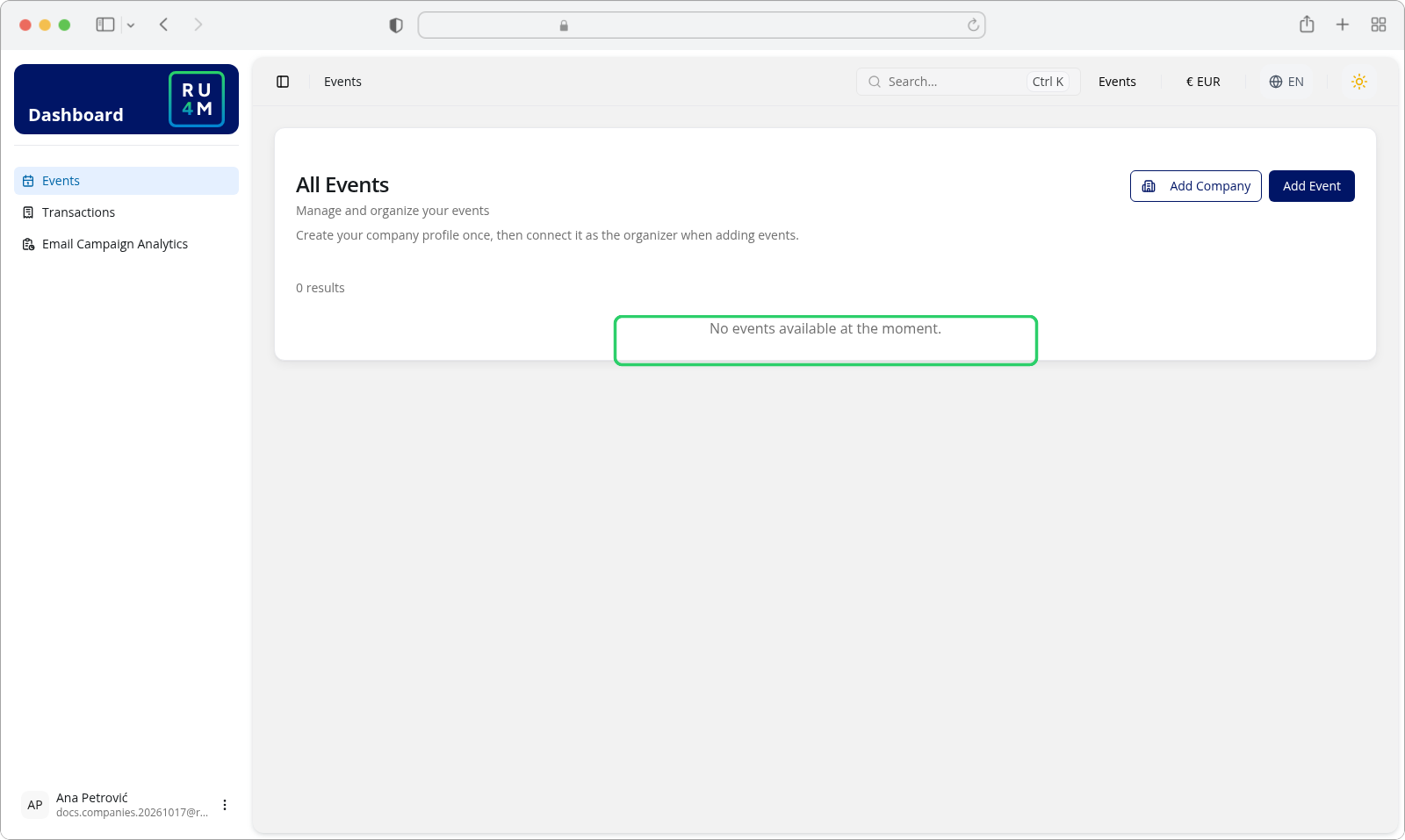
An account that has never created an event sees the panel below rather than a table — the result count reads 0 results and nothing is filtered out.
| What you see | What it means | What to do |
|---|---|---|
| No events available at the moment., with no table above it | The list is genuinely empty for you — normally an account that has not created an event yet. Nothing is filtered out. | Create your first event with Add Event. |
| An error occurred with Try again, inside the table | The list request failed. The table stays on screen. | Try again. If it keeps failing, the error screen for the whole page has appeared instead. |
| Couldn't load live events. with Try again | Only the Live Now banner failed; the table below it is fine. | Try again, and ignore it otherwise — it hides running events, not your list. |
| Something went wrong — We couldn't load your events. Please try again later. | The whole page failed to load. This screen is not translated. | Reload the page. |
| An event you expect is missing | It is not one you can act on. | Check it against the rules above: did you create it, moderate it, or administer the company that organizes it? |
The status column is a label, not a stored value
A paid event sitting on a free package is shown as DRAFT. Selecting DRAFT in the Status filter therefore also returns paid events on free packages, while PAYMENT COMPLETED returns only events on a paid package. Search, filters and list views explains this in full.