Editing company details, logo and contact information
Company details are edited on the company's own page — not in the list. This page has two tabs: one for the profile that appears wherever the company is used (name, description, phone, website and logo), and one for the postal address. Each tab has its own Save button and saves only its own part, so a wrong address never travels with a corrected phone number.
Admins and Moderators can edit a company
You need the Admin or Moderator role in that company. As a plain Member the Edit company button is not shown at all; ask an Admin to make the change or to raise your role — the table of who may do what is on Company member roles and permissions. No paid package and no event state is involved: editing works the same whether the company is connected to an event or not.
Where the page is
From Your companies and company access, open the company, then press Edit company in the page header.
| Where you are | What you see |
|---|---|
| A company's own page | Edit company in the top-right corner of the card that holds the company's logo and name |
| Members of that company | Nothing — the button is hidden for anyone who is not an Admin or Moderator |
The page itself is titled Edit {company name} with the line Update company details under it, and it lives at /en/dashboard/companies/{id}/edit. The open tab is part of the address (?tab=basic or ?tab=address), so a link to either tab can be bookmarked or shared. Opening the address without a tab sends you to Basic information.
The two tabs
| Tab | Fields it holds | Its save button |
|---|---|---|
| Basic information | Company Name, Description, Phone, Website, and the logo | Save basic information |
| Address | The address search field, and Street, Street number, City, Region, ZIP code, Country | Save address |
The label on the single save button changes with the tab, so always read it before pressing it.
Save stays greyed out until something on this tab changes
Both buttons are disabled while you have changed nothing in the tab you are looking at. That is why a freshly opened page shows a greyed-out Save basic information — it is not a broken page. A change on the other tab does not enable it either: with a new logo waiting and nothing else touched, stay on Basic information to save it, because Save address sends only the address. While a save is in flight the button reads Saving....
Editing the basic information tab
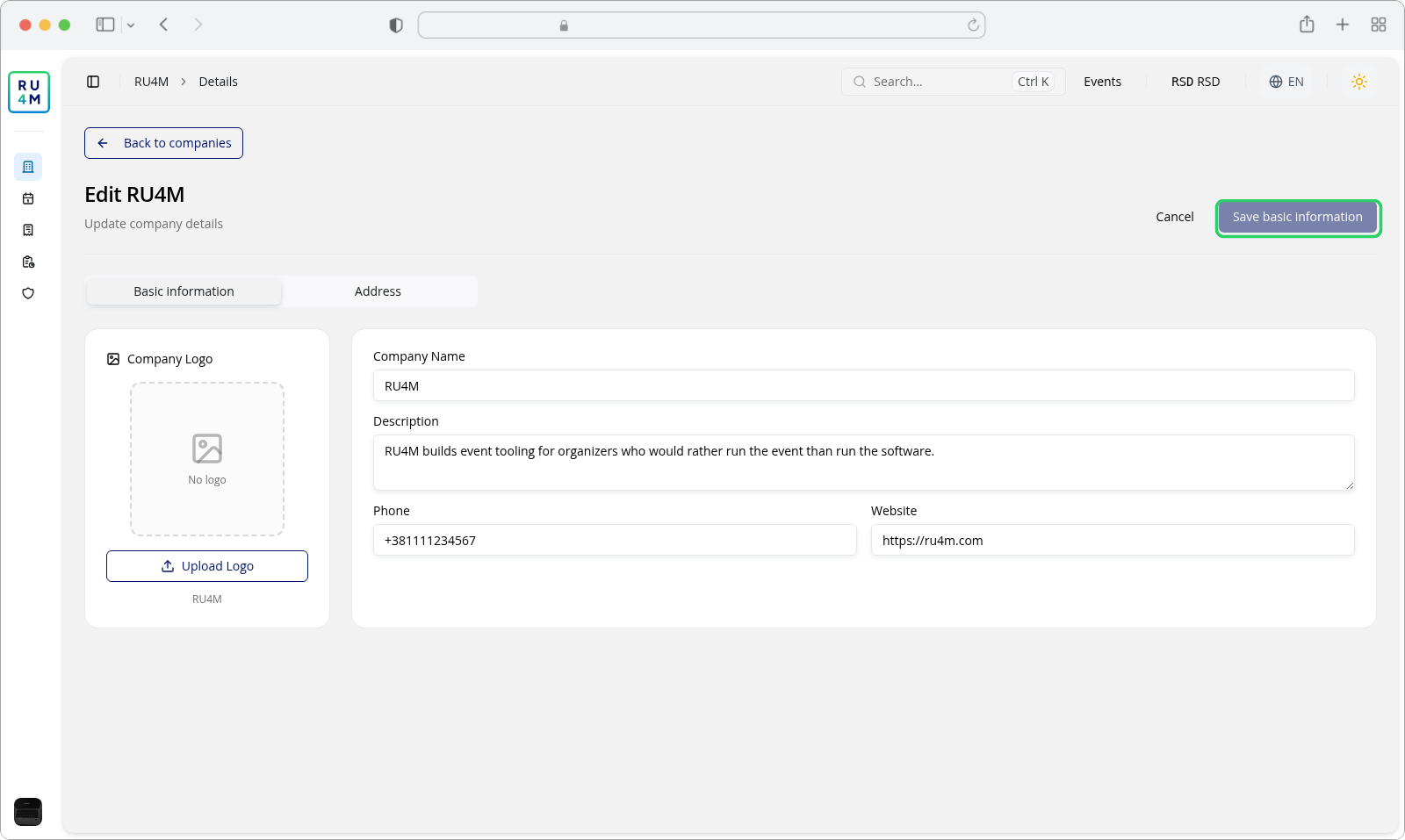
The tab is two panels. On the left is the logo, on the right the four profile fields.
- Change Company Name, Description, Phone or Website as needed. The fields arrive filled with what the company has today.
- Press Save basic information. A confirmation reading Company updated successfully appears and the page returns to the company's own page, where your change is already shown.
| Field | Required | What it takes |
|---|---|---|
| Company Name | Yes | Up to 100 characters. This name is what readers see in the list and wherever the company is picked as an organizer. |
| Description | No | Up to 1000 characters. Shown in the Description column of the list. |
| Phone | No | Up to 50 characters, and only digits and the symbols +, -, (, ) and spaces. |
| Website | No | If you fill it in, it must be a complete address — https://ru4m.com, not ru4m.com. |
There is no email field on this tab. The address has its own tab, and there is no field for the company's legal form, tax number or social links.
Replacing the logo
The left panel is titled Company Logo and shows the current logo in a square. Press Upload Logo and choose an image — the same crop dialog used when creating a company opens, and Confirm keeps the crop. The new logo is only previewed here; it reaches the company when you press Save basic information.
To take the logo away instead, press the small × in the corner of the preview. The panel goes back to the dashed No logo box, and pressing Save basic information removes the logo from the company — leaving it empty brings back the plain circle with the first letter of the name. While a file is being read the button reads Uploading... and the logo cannot be removed.
Editing the address tab
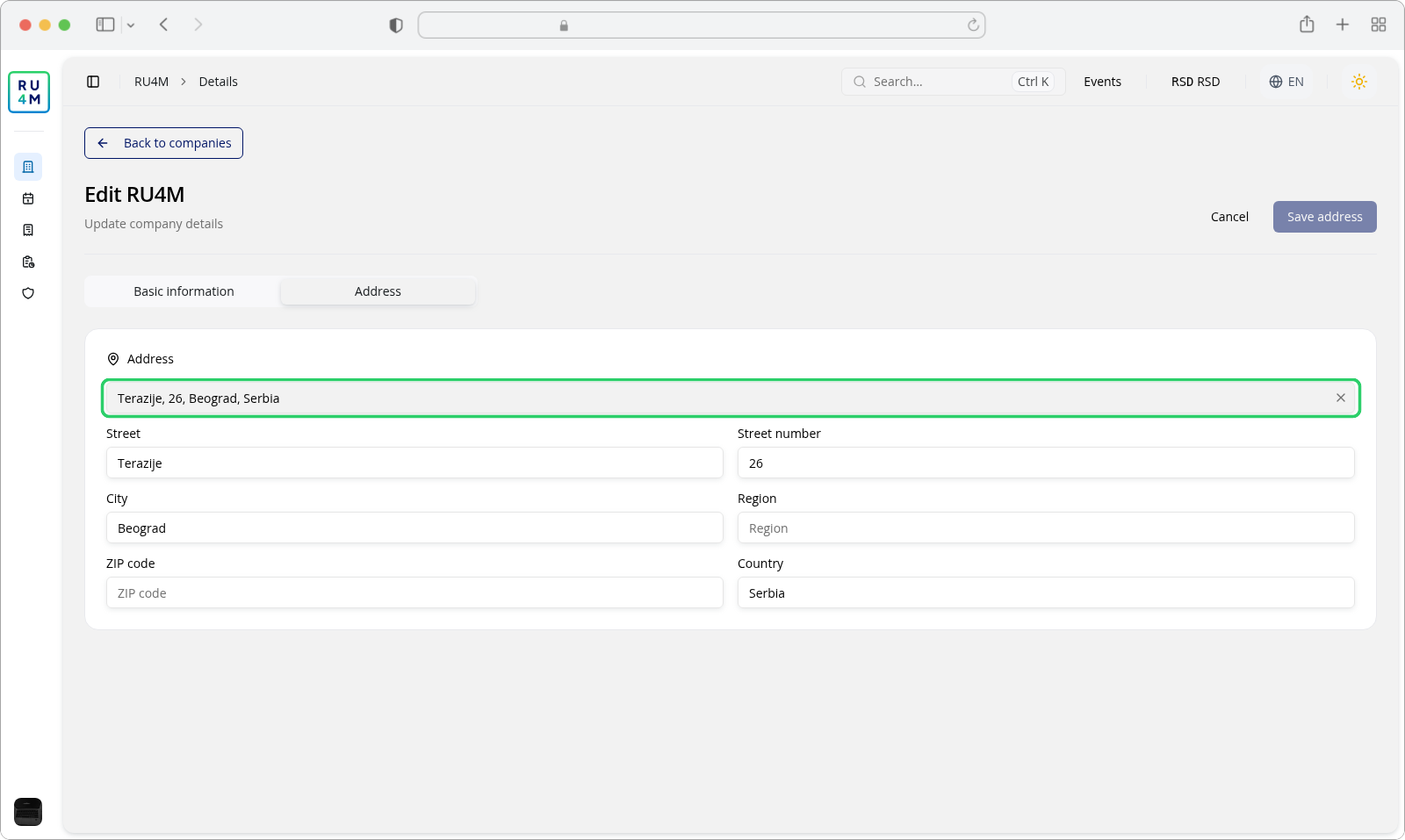
The tab is one panel: a search field on top, and the six resolved fields below it.
- Press Address to switch tabs. If you have unsaved changes the page asks about them first — see below.
- Either search for the address or type into the fields directly:
- Search. Type at least the street and city, pick the suggestion you want, and the six fields fill themselves. While the details are being read, the panel header shows Loading details....
- By hand. Street, Street number, City, Region, ZIP code and Country are ordinary text fields. Type what is correct; they are all optional, and an address can be as little as a city.
- Press Save address. The same Company updated successfully confirmation appears and the page returns to the company's own page.
Two things are worth knowing about this tab:
- The six fields are the company's stored address, so editing them here changes what appears on the company's page and anywhere the company is used as a venue — not just the search box.
- A hand-typed address has no coordinates. That is allowed and saved, but it cannot be placed on a map. If you clear the search field while the six fields stay filled, the company keeps the typed address and no longer counts as a located place.
Leaving with unsaved changes
Nothing you type reaches the company until you press the save button of the tab you are on. Until then the browser asks before throwing your work away.
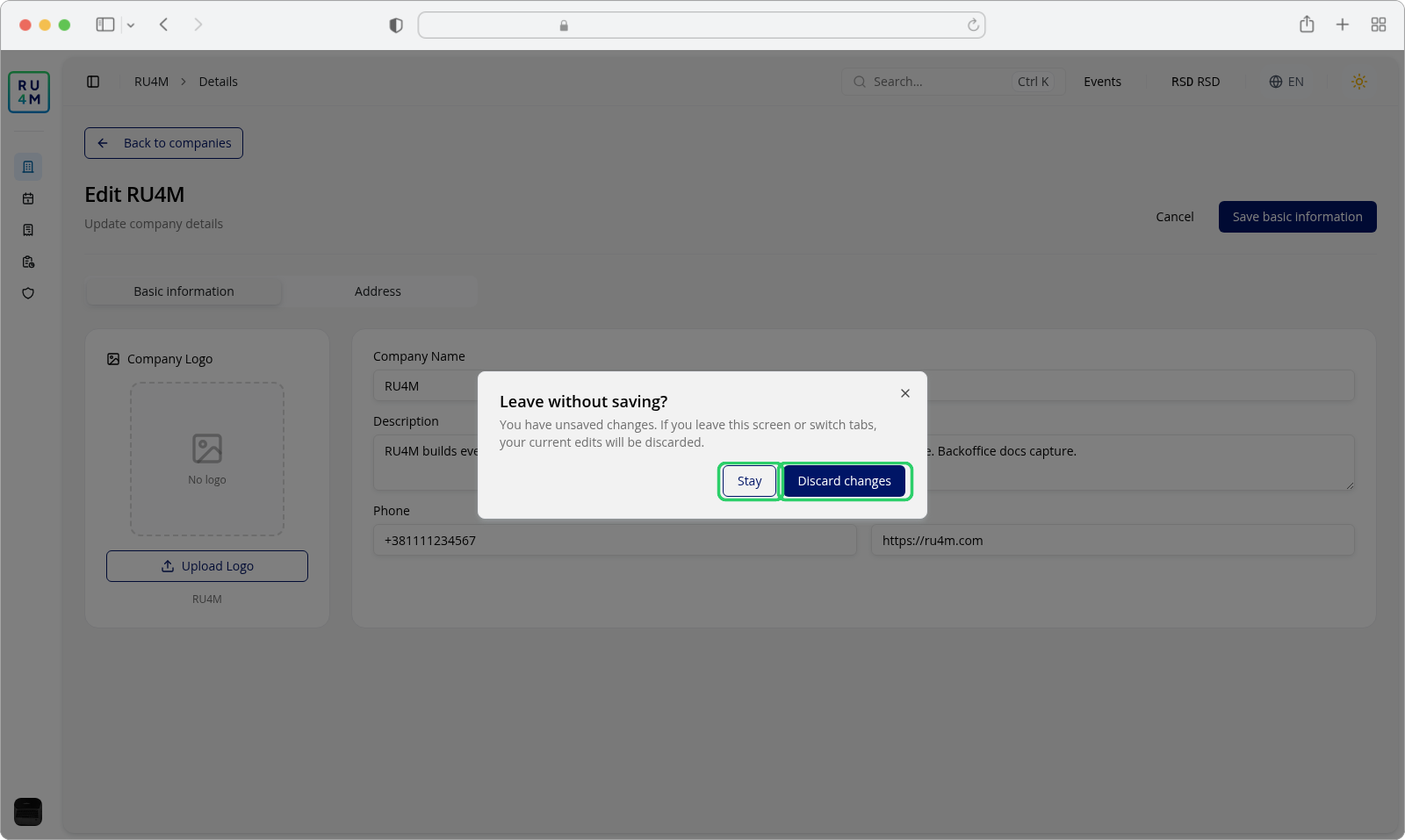
The dialog is titled Leave without saving? and explains that your current edits will be discarded if you leave the screen or switch tabs. It has two buttons:
| Button | What it does |
|---|---|
| Stay | Closes the dialog. You keep the tab you are on and everything you typed is still there. |
| Discard changes | Throws the edits away and goes where you were going. |
The same dialog appears whenever unsaved changes are in the way — pressing Cancel, switching tabs, clicking a link inside the app, and the browser's Back and Forward buttons. Closing or reloading the tab gets your browser's own confirmation instead.
Save each tab before you switch
Stay keeps your edits, but it does not store them — only a save does. A logo waiting to be saved counts as an unsaved change, so the dialog also appears if you uploaded one and then switch tabs.
If something goes wrong
| What you see | What it means | What to do |
|---|---|---|
| Leave without saving? appears right after you switched tabs | Something on the tab you left is unsaved. | Press Stay, go back, save that tab, then switch. Or press Discard changes and start again. |
| Name is required under Company Name | You cleared the name, or left only spaces. | Type a name of up to 100 characters. |
| Name cannot exceed 100 characters | The name is too long. | Shorten it to 100 characters or fewer. |
| Maximum 1000 characters allowed under Description | The description is too long. | Shorten it, or clear it. |
| Please enter valid phone number under Phone | The number contains letters or other symbols. | Use digits and +, -, (, ) and spaces only. |
| Please enter valid URL under Website | The website is not a complete address. | Include the scheme: https://ru4m.com. |
| Location is required under the address search field | You picked a suggestion whose details could not be read, so the address has no coordinates. | Pick a different suggestion; if it persists, clear the field with × and keep the six fields filled by hand. |
| Failed to upload image | The chosen file could not be read. | Choose another image. Nothing was changed. |
| Failed to parse selected address | The address you picked could not be resolved. | Pick another suggestion, or type the fields by hand. |
| Failed to update company | The save was rejected. Your edits are gone — the page reloads what the company has. | Note what you wanted to change, fix the cause, and type it again. |
| Company not found with a Back to companies button | The address names a company you cannot manage, or one that no longer exists. | Press Back to companies and open the company from your list. |
| No Edit company button on the company's page | You are a Member rather than an Admin or Moderator. | Ask an Admin — see Company member roles and permissions. |