Inviting and removing members
A company's team is the list of people who belong to it. This page covers inviting someone into that team, what they have to do before they are actually in it, and how to take a member away again. Each company has its own team — the same person can belong to several companies, each with their own role in it.
Who can invite and remove members
Only an Admin sees the invitation field and the row actions
You need the Admin role in that company. A Moderator and a plain Member both see the roster, but for them the invitation field above the table is not rendered at all, and each row has no Change role button. Nothing about this depends on a paid package or on any event state — a company that is not connected to an event manages its team exactly the same way.
The role you hold decides what you can do with people, and what each role allows beyond this page is on Company member roles and permissions.
Where the roster is
Open the company's own page — from Your companies and company access, click the company — and scroll to the Team members card. It sits below the card with the company's logo and contact details, and above the Delete company card. Its address is /en/dashboard/companies/{id}.
The roster
The roster is a table with three columns: Member, Role and Actions.
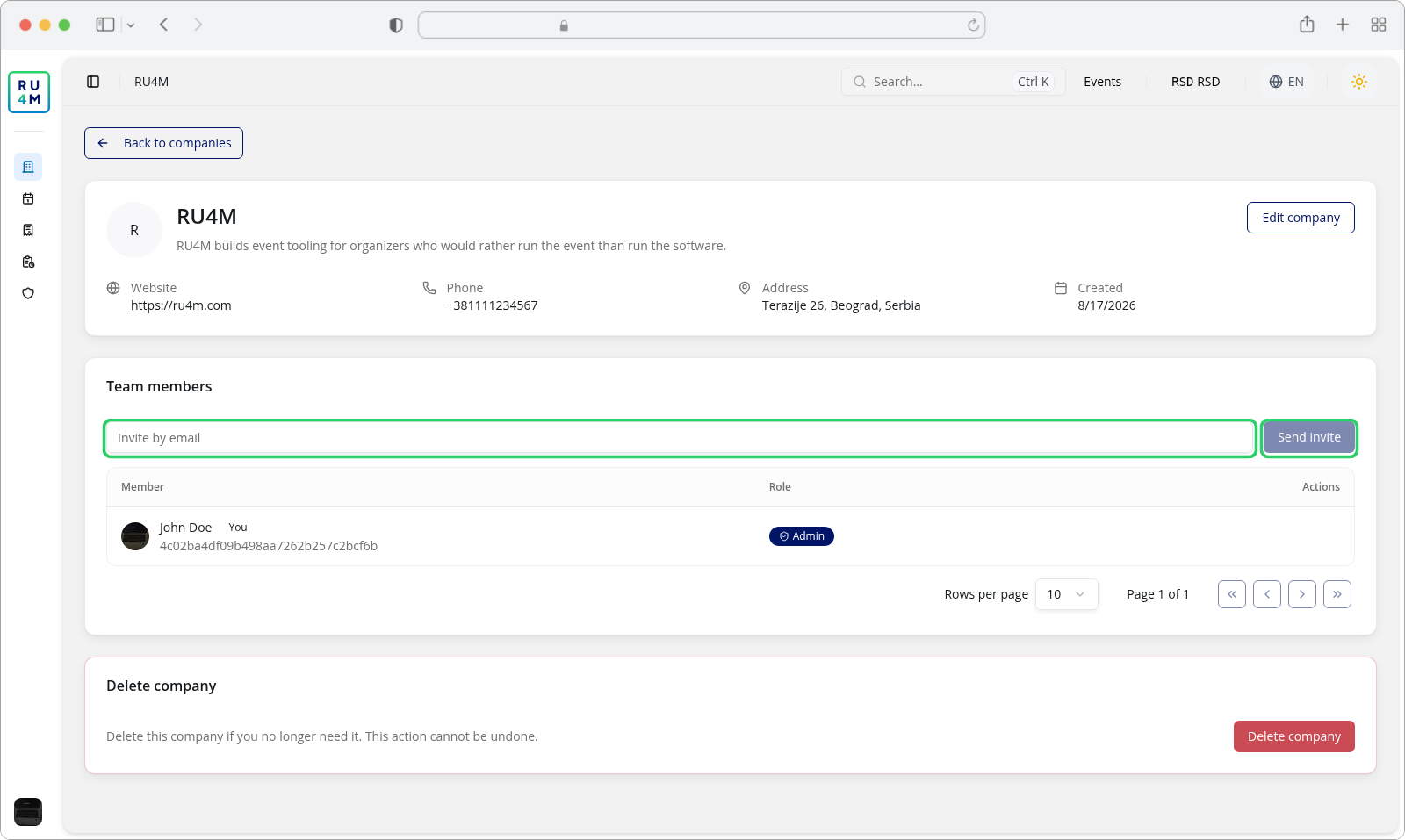
Each row shows the person's avatar and name, and their role as a badge — Admin, Moderator or Member. Under the name is that person's RU4M account ID — a long code, not their email address; someone whose account has no name set appears as the account ID alone. Your own row carries a small You badge next to your name and has nothing in the Actions column: you cannot remove or demote yourself from your own row.
The table shows ten people per page, and on a narrow screen it turns into one card per member with the same information. A company that has no members at all shows No members yet. in place of the table.
Inviting someone
- Type the person's email address into the Invite by email field. Send invite is greyed out until the field has something in it.
- Press Send invite.
- The confirmation Invitation sent successfully. appears and the field empties itself. Nothing else on the page changes yet — and that is expected, see the next section.
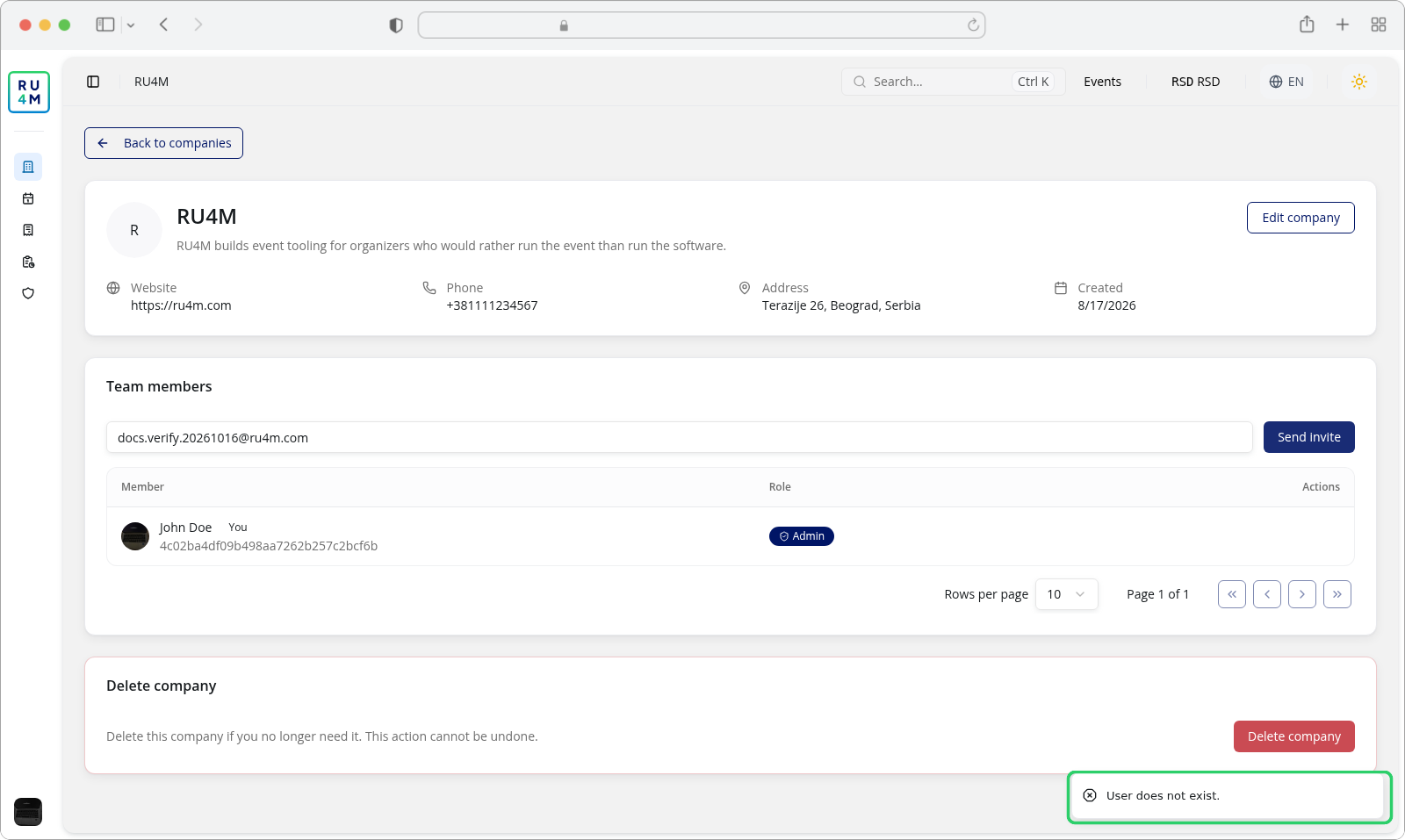
The capture above is the failure rather than the success: the address typed into the field had no RU4M account behind it, and the invitation was refused with User does not exist. The roster below it is untouched, as it always is when an invitation is refused.
An invitation is not yet a membership
This is the part that surprises people, so it is worth being exact about it: pressing Send invite records a pending invitation and sends an email to that address containing a link. It does not add the person to the roster. They become a member only once they open that link and accept it in RU4M. Until they do, they are not in the table, and the company is not visible to them.
Two consequences follow from that:
- The address must already belong to a RU4M Backoffice account whose email address has been confirmed. The invitation looks the address up among confirmed accounts and fails if there is nothing behind it — an invitation cannot create an account, and it cannot confirm one either. If the person has never signed in to the Backoffice, or has signed in but never confirmed the address RU4M emailed them, they have to finish that first: create an account and confirm the address from the email it sends.
- Everyone is invited as a plain Member. The invitation field has no role selector. To give someone Admin or Moderator, change their role after they have accepted — see Company member roles and permissions.
The invitation email prints an expiry date 30 days out, but the invitation does not actually expire on it. It stays valid and pending until the person accepts it, rejects it, or the company is deleted — and until one of those happens it also blocks you from inviting that same address again, with the invitation is already pending error. Nothing on this page lists the invitations still waiting, and no Admin can cancel or re-send one from RU4M either. A stale invitation therefore does not clear itself: the way forward is for the person to open the link in the email they were sent, which still works however old it is.
Removing a member
- On the member's row, press Change role.
- In the menu that opens, press Remove.
The menu also offers Make admin, Make moderator and Make member — whichever two of the three the person is not — above the Remove entry. Those are covered on Company member roles and permissions.
Removal takes effect immediately, and there is no confirmation step
There is no dialog between pressing Remove and the member being gone — the confirmation Member removed. is what tells you it worked. The person loses their access to the company at once, and the removal is not something you can undo from this page: to bring them back you have to invite them again and have them accept.
Removing a member removes them from this company only. Their own RU4M account is untouched, and so is their membership of any other company.
If something goes wrong
| What you see | What it means | What to do |
|---|---|---|
| An error toast reading User does not exist. instead of Invitation sent successfully. | No confirmed RU4M Backoffice account has that email address — either the person never registered, or they registered and never confirmed the address RU4M emailed them. | Have the person finish creating an account and confirming their address, then send the invitation again. |
| An error toast saying the user is already a member | That person is already on the roster. | Nothing to invite. To give them a different role, use Change role on their row. |
| An error toast saying the invitation is already pending | You have already invited that address, and that invitation has neither been accepted nor rejected. The 30 days printed in the email do not expire it. | Wait for them to use the link in the email, which still works. If they never will, RU4M gives you no way to clear it — only deleting the company cancels the invitations still pending. |
| The invitation field and the Actions column are missing | You are a Moderator or a Member, not an Admin. | Ask an Admin of the company — see Company member roles and permissions. |
| A member accepted nothing and never appears in the table | The invitation has not been accepted yet. It does not expire on its own, however long ago it was sent. | The person has to open the link in the email they were sent — it stays valid until they accept or reject it. |
| Team members could not be loaded. with a Try again button | The roster could not be fetched. | Press Try again. Your other company pages are unaffected. |
| An error toast naming an action, saying you cannot do it as the only admin | You are the only Admin and the change would leave the company without one. | Invite and promote a second Admin first, then make the change. |